Russian Keyboard Online, Plus How to Add It to Any Device
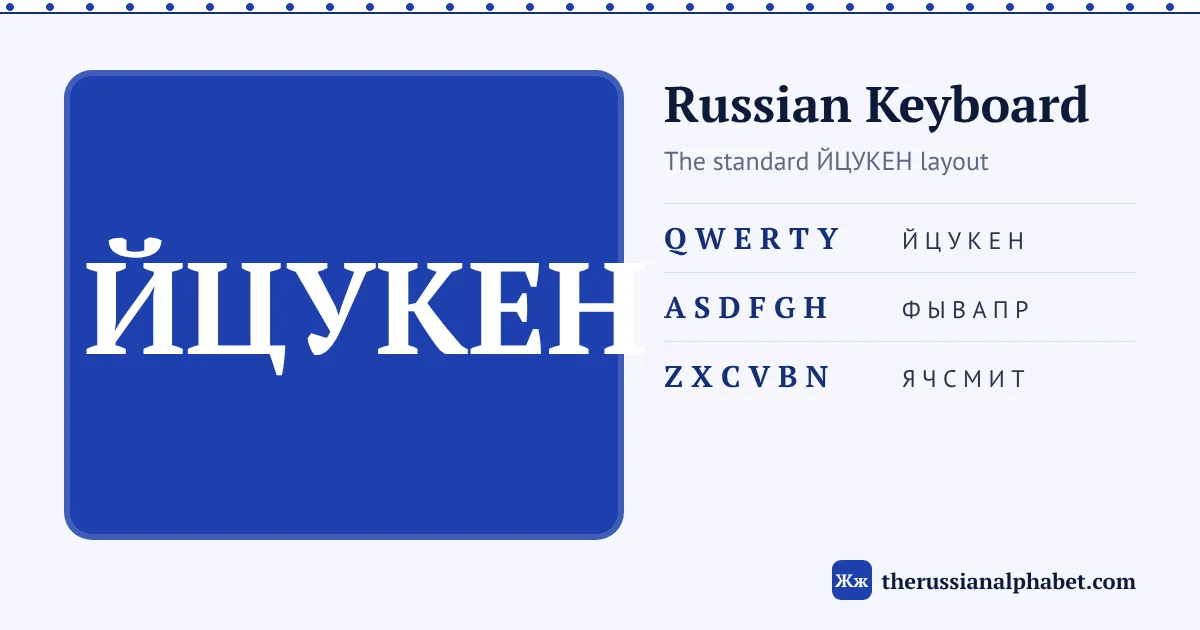
A Russian keyboard puts the 33 Cyrillic letters on the same physical keys you already have, using a standard layout called ЙЦУКЕН (named after its first six letter keys, the way QWERTY is). You can type Russian right now with the online keyboard below, either by clicking the keys or by typing English letters that turn into Cyrillic as you go. Further down are the steps to add a Russian keyboard to Windows, Mac, iPhone and Android.
For a one-off message, use the online keyboard on this page and press Copy. For regular typing, add Russian in your device settings: Windows (Settings → Time & language), Mac (System Settings → Keyboard → Text Input), iPhone (Settings → General → Keyboard) or Android (Gboard → Languages).
Online Russian keyboard
Click the keys, or type on your own keyboard. Phonetic mode turns Latin letters into Cyrillic (privet → привет); ЙЦУКЕН mode types the letter printed on each key’s Russian position.
Phonetic or ЙЦУКЕН mode?
The online keyboard has three ways in: the on-screen keys, which always work, and two modes for your physical keyboard. Shift on the on-screen keyboard capitalises the next letter; Space, Backspace, Clear and Copy sit on the bottom row.
| Phonetic (default) | ЙЦУКЕН position | |
|---|---|---|
| What you type | Russian sounds in Latin letters | The key where the Russian letter sits on a real Russian keyboard |
| Example | s-p-a-s-i-b-o gives | C-G-F-C-B-,-J gives спасибо |
| Best for | Beginners and occasional typing | Learning touch typing on the real layout |
In phonetic mode, combinations are read longest first, so “shch” gives щ, “zh” gives ж, “kh” gives х and “ya” gives я. A “y” straight after a vowel becomes й, so “chay” gives (chay, tea). One apostrophe is the soft sign ь, two apostrophes are the hard sign ъ. The full list is in the typing table on the Russian transliteration page, and you can try these:
- privet → (hi; stress: pri-VYET)
- zdravstvuyte → (hello, formal; stress: ZDRAST-vuy-tye, the first в is silent)
- borshch → (borshch, beet soup)
- yozh → (yozh, hedgehog)
Phonetic and ЙЦУКЕН modes listen to a physical keyboard. On a phone’s touch keyboard the text stays in Latin letters, so tap the on-screen Russian keys instead.
The ЙЦУКЕН layout
ЙЦУКЕН is the standard Russian layout on computers. It is not phonetic: the positions have nothing to do with English sounds, so а is not on A and б is not on B. The vowels а, о and е sit near the middle of the keyboard, under the index fingers. Here is where each letter falls on a US-layout keyboard:
| Row | US keys | Russian letters |
|---|---|---|
| Number row | ` | ё |
| Top row | Q W E R T Y U I O P [ ] | й ц у к е н г ш щ з х ъ |
| Home row | A S D F G H J K L ; ‘ | ф ы в а п р о л д ж э |
| Bottom row | Z X C V B N M , . / | я ч с м и т ь б ю . |
Two consequences surprise English typists. The full stop moves to the / key, with the comma on Shift + /, because , and . are taken by б and ю. And several Latin lookalikes are on unexpected keys: Cyrillic с is on C, but е is on T and р is on H. The online keyboard’s ЙЦУКЕН mode follows this layout, which makes it a good way to practise before you switch your computer over. If some letters are still new, the interactive Russian alphabet chart lets you hear each one.
Add Russian on Windows
These steps follow Microsoft’s guide to language and keyboard settings for Windows 11. Windows 10 uses similar steps under Settings → Time & Language.
- Open Start → Settings → Time & language → Language & region.
- Next to Preferred languages, select Add a language, search for Russian, select it and choose Next, then Install.
- To pick a different Russian layout, select the … next to Russian, open Language options, and under Keyboards choose Add a keyboard. Besides the standard “Russian” (ЙЦУКЕН) layout, Windows offers Russian – Mnemonic, which places letters by sound.
- Switch layouts with Windows + Space, or from the language button on the taskbar.
Add Russian on a Mac
From Apple’s Mac User Guide:
- Choose Apple menu → System Settings, then click Keyboard in the sidebar.
- Under Text Input, click Edit, then the + button.
- Search for Russian, select a layout and click Add.
- Switch from the Input menu in the menu bar, with Control + Space (last used source) or Control + Option + Space (next source), or with the Globe key if you set it to change input source.
macOS offers several Russian layouts. Russian – Phonetic puts Cyrillic letters on the Latin keys that sound most alike (а on A, б on B and so on), which some university Russian programs recommend to learners. Russian and Russian – PC are ЙЦУКЕН-based, for people who already know the layout used in Russia. To check where a letter is, choose Show Keyboard Viewer from the Input menu.
Add Russian on iPhone
- Go to Settings → General → Keyboard → Keyboards.
- Tap Add New Keyboard and choose Russian.
- While typing, tap the globe key to switch keyboards, or touch and hold it to pick from a list.
Apple’s iPhone User Guide covers the same steps, plus how to reorder or remove keyboards. The iPad path is the same.
Add Russian on Android
Most Android phones use Gboard. Following Google’s Gboard help:
- Open any app you can type in and tap a text field.
- Tap the settings icon at the top of the keyboard, then Languages → Add keyboard.
- Choose Russian, pick a layout and confirm.
- To switch, touch and hold the space bar, or turn on the globe (language switch) key in Gboard’s Preferences.
Phones from some makers ship with their own keyboard app; the option is usually under Settings → System → Keyboard, though the exact wording varies by brand.
Finding ё and ъ
These two letters cause most of the “where is it?” moments.
- ё on a computer: on the standard Windows Russian layout it sits on the ` key, left of 1. Mac layouts may place it elsewhere, so check Keyboard Viewer. Russian texts often print ё as plain е, so typing е is widely accepted, but ё is never wrong.
- ъ on a computer: on ЙЦУКЕН it is the ] key, right of х. It is rare, appearing in words like (pod”yezd, building entrance; stress: pod-YEZD).
- On phones: touch keyboards often hide ё behind a long press on е, and ъ behind a long press on ь. If a letter seems missing, hold its lookalike.
- On this page: both are on the online keyboard (ё top left, ъ at the end of the top letter row). In phonetic mode type “yo” for ё and two apostrophes for ъ.
For what these two signs actually do, see the soft sign and hard sign.
FAQ
Can I buy a keyboard with Russian letters?
Yes, keyboards with dual Latin and Cyrillic markings exist, and keyboard stickers are a cheaper option. Neither is required: once the Russian layout is added in your settings, any keyboard types Cyrillic.
Why is the Russian keyboard called ЙЦУКЕН?
For the same reason QWERTY is called QWERTY: Й, Ц, У, К, Е and Н are the first six letters on the top row.
Should I learn the phonetic layout or ЙЦУКЕН?
Phonetic layouts are quicker to start with because letters sit on similar-sounding keys. ЙЦУКЕН is what computers in Russia use, so it is worth learning if you will type Russian often or use other people’s machines.
How do I switch between English and Russian quickly?
On Windows press Windows + Space. On a Mac press Control + Space or use the Globe key. On iPhone tap the globe key, and on Android touch and hold the space bar in Gboard.
- ЯяRussian transliterationConvert Cyrillic to Latin letters and back, in four systems.
- ДдRussian cursiveSee typed text in handwriting and print a practice sheet.
- БбRussian alphabet quizTest yourself on letters and sounds in 10-question rounds.